
Intro
Most common off-the-shelf desktop PCs are configured with basic graphics to support only a couple monitors and offer only minimal graphics processing horsepower, utilizing either a basic video card or onboard/integrated graphics from their CPU. In either case, these typical PCs usually never have more that four usable display outputs to feed video signal to your screens. Most traders value a reasonable amount of screen real estate for their charts, indicators, data feeds, trading platform, and research tools. With that in mind, how do traders configure a multi-monitor trading PC with adequate screen real estate?
In this article, I’ll explain the various features of our trading PCs that make these arrays possible, and how to set up your own multi-monitor array!
How to Connect More than Four Screens
Multiple Video Cards (Recommended)
The most reliable way to configure a trading PC with five or more displays is by configuring your trading computer with more than one video card. Most video cards have four display outputs in some combination of HDMI, DisplayPort and Mini-DisplayPort. Adding a second card simply adds four more display outputs, doubling the number of monitors your system can support from four to eight. We consider this the most reliable option because each display output connects directly to a single monitor with no additional points of failure introduced into the system.
Multi-Stream Transport (MST)
Multi-Stream Transport or MST for short, is a feature of the DisplayPort standard that allows supported displays to be daisy chained off of a single output from the video card up to a limit of four monitors at 1080p, two at 4K, or one at 8K. This potentially allows for eight 4k monitors to be run off of a single video card. MST should only be used when more monitors need to be connected than the video card has available ports. It is not recommended to daisy chain monitors instead of making a direct connection for setups of four monitors or less where the array can be fully populated with the available ports. It is also noteworthy that monitors which support MST are limited and tend to be priced higher than monitors without this feature. You may have to consider the price difference between building an array of MST capable displays, or adding a second video card and going with cheaper displays. To know if a display supports MST, refer to the manual or specification documentation, or look for a “DisplayPort Out” port on the monitor. If the monitor has a DP out, then it likely supports MST.
X1000 Bundle
Mounting and Arranging your Displays
Once you have your PC and Displays, it’s time to mount the displays and connect them to your PC. Multi-Display mounts use the VESA standard. VESA (Video Electronics Standards Association) oversees manufacturing standards for things like monitor and TV mounts. The VESA standard is nearly universal for all consumer PC displays.
You can learn more about this standard here:
https://www.gechic.com/en/what-is-vesa-mount-standard/
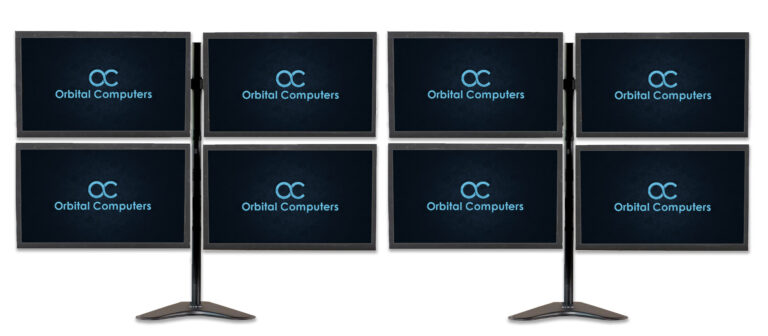
There are a wide variety of monitor arms available to choose from when building your multi-monitor array, but the most any arm is likely to support is 6 displays on a single stand. Mounting more than 6 displays will usually require multiple monitor stands. A common setup for 8 monitors for instance would be to simply set up two quad monitor arrays side-by-side.
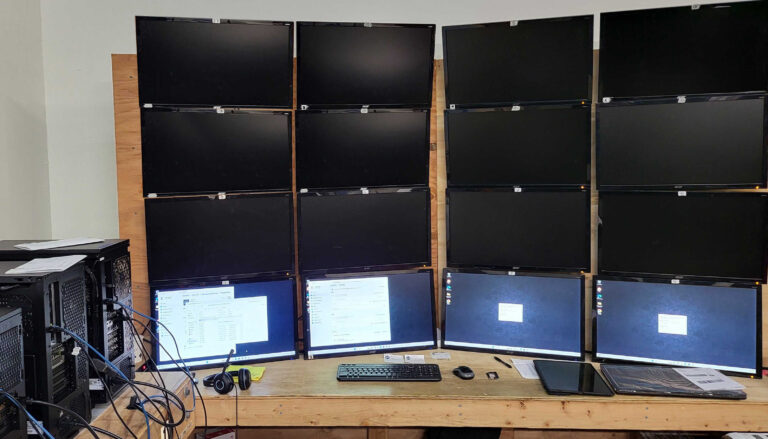
Alternatively, you could custom build a monitor wall comparable to Orbital’s own in-house 16-monitor array that we use for testing our workstations before shipping.
Configuring your Extended Desktop
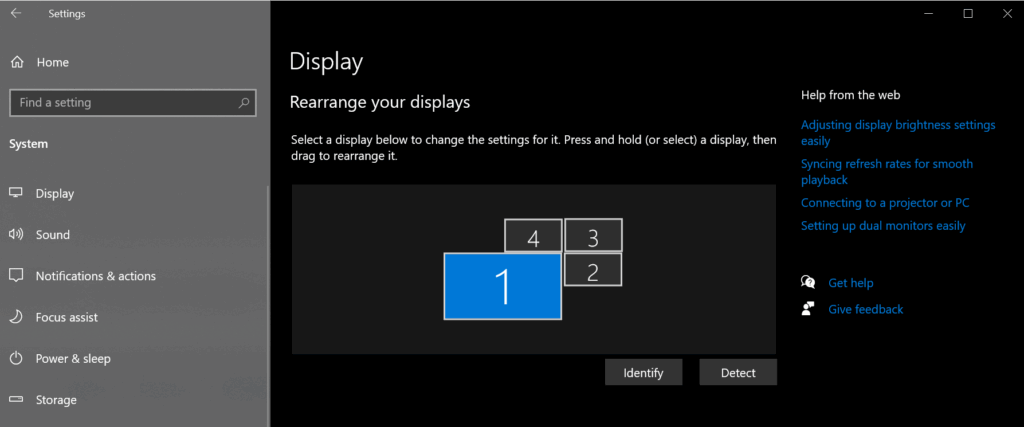
So, you have all eight of your screens connected to the PC. Now you must endure the chaos of moving your mouse cursor from one screen over to a completely random screen, or perhaps all eight screens show an identical image. This all means the next step in setting up your multi-monitor array is to arrange your displays in the Windows Display Settings Panel. Right click anywhere on your desktop and select “Display Settings” then scroll down to the “Multiple Displays” heading and select “Extend desktop to this display” for each monitor until every screen has it’s own unique number. The graphic at the top of the Display Settings Panel that shows all of the numbered displays is interactable. Click “Identify” to momentarily cause a number to display on each of your screens, then drag each square representing one of your screens until they match the real life locations of the screens on your desk.
Conclusion
The ability to extend the Windows desktop across many displays is crucial to the workflow of many trades, especially the trade of trading! Now you are armed with the knowledge of how you can set up your workstation to maximize the available visual information, whether for convenience, or for ensuring you always know what you need to know, when you need to know it.
Other Types of Multi-Screen Setups
If you arrived on this page looking for information about LED Walls, Projector Mapping, or other kinds of Multi-Screen setups, sorry to disappoint you, this is not the article you are looking for. For information about Datapath, Matrox, Quadro Sync Framelock technology and more, stay tuned for our article dedicated to Display technology for Live AV and Multimedia Production.